OpenCore EFI Hackintosh for Acer TravelMate P648-M
- ASL 100%
| Filename | Latest commit message | Latest commit date |
|---|---|---|
|
|
||
| EFI | ||
| .DS_Store | ||
| preview.png | ||
| README.md | ||


OpenCore EFI for Acer TravelMate P648-M (1.26)
Warning
You are NOT recommended to use SMBIOS from this repository, it MUST be unique for every machine !!!
Download EFI : Selfhost
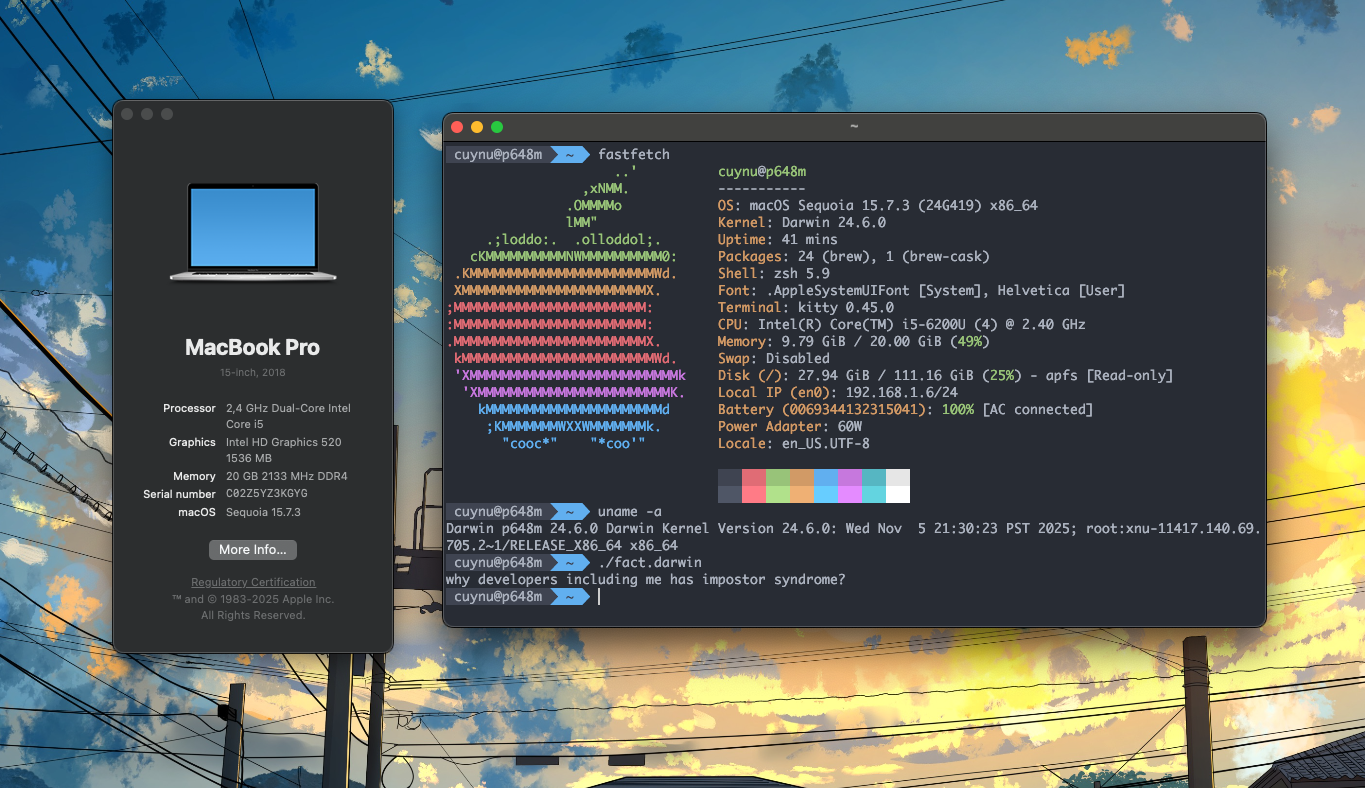
Specifications
| Components | Info |
|---|---|
| CPU | Intel Core i5-6200U (2c/4t) (2.4 GHz) |
| Motherboard | B4DBU |
| Ram | 20GB (1* 16) DDR4 2133 Samsung |
| Audio Chipset | ALC282 |
| Chipset | - |
| WiFi & Bluetooth | Atheros QCNFA222 (unsupported) |
| BIOS | 1.26 |
| GPU | Intel HD 520 |
| OpenCore version | 1.0.5 |
| macOS version | 15.7.3 (24G419) |
| SMBIOS | MacBookPro15,1 |
What works
- Boot
- Bulit-in Webcam
- Microphone
- Headphone jack
- HDMI port
- Audio (ALC282) with AppleALC
- Ethernet Intel I219-V
- USB Ports (*3)
- Thunderbolt (Type-C)
- Sleep mode / Wake (only with good BIOS)
- Coding :>
What not working
- External Dock (untested)
- SD-Card reader (untested)
- VGA Port
- WiFi & Bluetooth (Atheros only supports up to High Serria)
- Quick action (P) button
- Maybe others...
Known issues
- Installation might fail with some SSDs, such as eekoo 120gb SSD.
Tested macOS versions
- Sequoia 15.7.3
BIOS Settings
- Secure boot : [Disabled]
- TPM 2.0 : [Disabled]
- F12 Boot Menu : [Enabled]
Installation
- Made the USB installer with the instruction from Dortania : Creating the USB
- Copy the pre-bulit "EFI" folder from this repository to the USB that is containing installer you just created.
- Restart laptop, enter the BIOS with F2 key
- Set administrator password in order to be able to disable Secure boot
- Go to "Boot" tab and disable "Secure boot"
- Go to "Security" tab and disable TPM 2.0
- Go to "Main" tab and enable "F12 boot menu"
- F10 -> Yes
- Enter boot menu with F12 key -> select the USB
- Select Recovery boot entry (settings icon that is yellow colored)
- When booted to macOS installer, go to Disk Utility -> Format the disk you wanted to install then quit Disk Utility
- Connect to the internet with LAN cable
- Use the reinstall macOS option and select the disk you just formatted and wait for it to install
- Copy the pre-bulit "EFI" folder from this repository to the EFI partition of your disk, so it's can boot without USB
- Enjoy !
Thanks & Credits
- OpenCore
- OpenRuntime
- HFSPlus
- Lilu
- VirtualSMC
- WhateverGreen
- AppleALC
- USBInjectAll
- VoodooPS2Controller = Any many other Kexts...